

If you’ve ever tried to manually record every trade from MT4 into a spreadsheet, you already know:
- It’s boring
- It’s easy to forget
- And after a long session, you just don’t want to do it
But if you don’t track your trades, you’re trading blind.
The good news? You can automatically track MT4 trades using tools that:
- Log every trade for you
- Capture screenshots
- Export data for analysis
In this guide, we’ll walk through:
- What MT4 can do by default
- Why manual journaling is so painful
- Different ways to auto-track trades
- A full workflow using Trade Journal Pro EA + Analyzer to track and analyze your MT4/MT5 trading automatically
Why You Should Automatically Track Your MT4 Trades

Manually writing trades into a journal sounds good in theory.
In reality:
- You forget to record trades
- You skip losses
- You miss screenshots
- You make typos copying prices or lot sizes
Automatic tracking solves these problems:
- ✅ Every trade is captured (wins and losses)
- ✅ Data is accurate and complete
- ✅ You get consistent journaling even on busy days
- ✅ You free your brain to focus on trading, not on typing
Once your trades are automatically logged, you can:
- Analyze performance by pair, time, session, setup
- Review mistakes and psychological patterns
- Build a proper trading journal and statistics report without extra manual effort
What MT4 Can Do by Default (and Its Limitations)
MetaTrader 4 has some built-in features that are helpful but limited.
MT4 Built-In Trade History
In the Terminal → Account History tab, you can see:
- All closed trades
- Profit/loss
- Open time, close time
- Swap and commission
You can also:
- Right-click → Save as Report to export an HTML report
- Right-click → Save as Detailed Report for a bit more info
Limitations
- No screenshots of entries/exits
- No notes about psychology or setup
- No tagging or strategy labels
- No advanced breakdowns (by session, by weekday, by setup, etc.)
- Reports aren’t in CSV/XLSX format by default for easy analysis
MT4 gives you raw history — not a proper trade journal.
Ways to Automatically Track MT4 Trades

There are three main ways to automate tracking:
1. Connect MT4 to a Third-Party Web Journal
Some websites let you connect your MT4 account or upload statements.
They then calculate stats and show dashboards.
Pros:
- Nice charts and web interface
- Accessible from any device
Cons:
- Usually subscription-based
- Often require regular logins or manual uploads
- No chart screenshots from inside MT4
2. Use a Custom Script or EA to Export Trades
You can use an Expert Advisor (EA) or script that runs on MT4 and:
- Monitors trades
- Logs them to a file
- Exports data for later analysis
This is the category where Trade Journal Pro EA belongs.
Pros:
- Runs directly inside MT4
- Can log trades in real time
- Can capture screenshots
- Gives you full control of your own data
Cons:
- You need to set it up properly once
- Quality depends on how well the tool is built
3. Hybrid: MT4 + Spreadsheet + Some Automation
You can also:
- Export account history from MT4
- Import into Excel or Google Sheets
- Use formulas or macros to generate stats
This is semi-automatic, but still requires manual work and no screenshots.
Why Use an EA for Automatic MT4 Trade Tracking?

For MT4 traders, an EA-based solution is often the best balance of:
- Automation
- Flexibility
- Control over your data
An EA like Trade Journal Pro EA can:
- Run quietly in the background
- Log every trade
- Capture entry and exit screenshots
- Prepare data for analysis
- Pair with an external Analyzer app to create professional reports
Let’s go step-by-step using Trade Journal Pro EA as an example.
Step 1: Install Trade Journal Pro EA on MT4
Note: The same logic applies to MT5 if you’re using the MT5 version.
- Copy the EA file into your MT4 directory:
File→Open Data Folder- Go to
MQL4→Experts - Paste the
Trade Journal Pro EAfile there
- Restart MT4 so it loads the new EA.
- In the Navigator window, expand Expert Advisors — you should see Trade Journal Pro EA listed.
Step 2: Attach Trade Journal Pro EA to a Chart
- Open any chart (EURUSD H1, for example).
- Drag Trade Journal Pro EA from the Navigator onto the chart.
- In the settings window:
- Make sure “Allow live trading” is checked
- Enable any DLL imports or external calls if your EA uses them
- Click OK.
If everything is working, you should see the EA name in the top-right corner of the chart, often with a 🙂 or similar status.
Step 3: Configure EA Settings for Tracking
Depending on how you designed Trade Journal Pro EA, you may have inputs like:
- Whether to capture screenshots
- Where to save screenshots
- What trade types to track (manual, EA, all)
- Comment/tagging options
Typical settings you might want:
- Capture Entry Screenshot: ON
- Capture Exit Screenshot: ON
- Screenshot Folder: (default or your preferred path)
- Track All Symbols or Specific Ones: Usually “All”
- Track All Magic Numbers or Manual Only: Set according to your use case
Once configured, click OK and let the EA run.
Step 4: Trade Normally – Let the EA Do the Work
From this point:
- Place trades as you normally would (manual or via other EAs).
- Trade Journal Pro EA will:
- Detect new trades
- Log their details
- Capture entry and exit screenshots
- Save all necessary information for later export
You don’t need to manually type anything during your trading session.
Step 5: Export Your Trade Data from MT4
At the end of your session/day/week:
- Go to the Account History tab in the MT4 Terminal.
- Right-click → choose the period you want (Today, Last 3 Months, Custom Period, etc.).
- Export as CSV (if your EA or Analyzer works with CSV) or follow the export procedure required by Trade Journal Pro EA / Analyzer.
In many cases, Trade Journal Pro EA will already generate a formatted CSV file ready for the Analyzer.
Step 6: Analyze Your Trades with Trade Journal Pro Analyzer
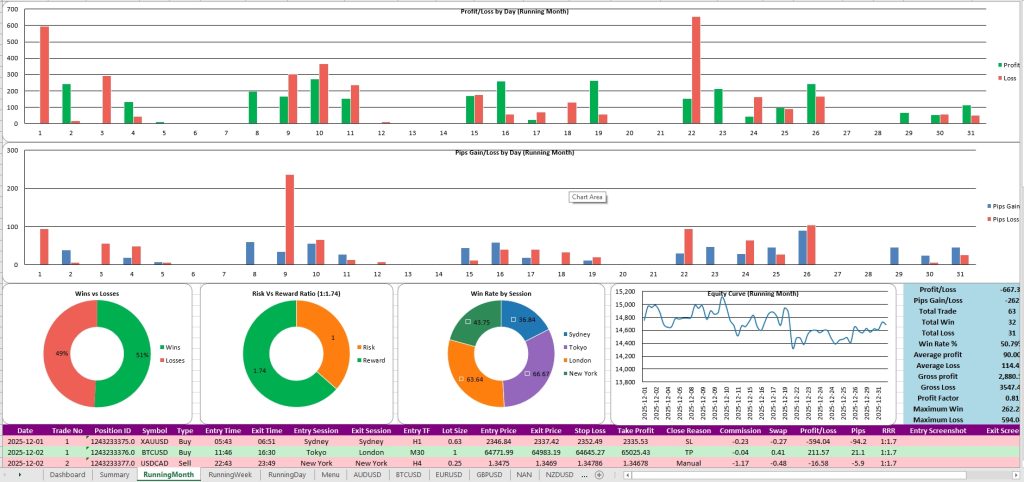
Now open Trade Journal Pro Analyzer (your companion software for analysis):
- Launch the Analyzer on your computer.
- Load the exported CSV file from MT4.
- The Analyzer will process your data and generate an XLSX report.
This report can include:
- Overall performance summary
- Win rate and loss rate
- R:R statistics
- Performance by currency pair
- Performance by time of day or session
- Performance by weekday
- Equity curve and other charts
Because your data was automatically tracked, the report is:
- Accurate
- Complete
- Time-efficient
Step 7: Use Screenshots for Deeper Trade Review

One of the most powerful features of automated tracking with Trade Journal Pro EA is automatic screenshots.
You’ll have:
- Entry screenshots → what the chart looked like when you entered
- Exit screenshots → what it looked like when you closed the trade
You can:
- Match screenshots to specific trades in your XLSX report
- Study your best and worst setups visually
- See which trades were clean and which were messy or emotional
This turns your journal into a visual learning tool — not just numbers on a spreadsheet.
Example Workflow: From MT4 to Full Trade Journal
Here’s how a typical week might look using automatic tracking:
- During the week:
- Trade on MT4/MT5 normally
- Trade Journal Pro EA logs trades + screenshots
- End of the week:
- Export your trade data (or use the EA’s export feature)
- Open Trade Journal Pro Analyzer and load your CSV
- Get a full XLSX report with multiple sheets
- Weekly review:
- Go through your stats (win rate, worst pairs, best setups, performance by time, etc.)
- Open screenshots of key trades (big wins and big losses)
- Write down lessons and improvements for next week
All of this happens with much less manual effort compared to typing everything into a spreadsheet.
Tips for Getting the Most Out of Automatic Trade Tracking
Automatic tracking is powerful, but you’ll get even more value if you:
1. Add Short Notes or Comments
If your EA or MT4 setup allows comments per trade (like “Breakout setup”, “News scalp”, “Trend pullback”), use them.
Later, in your Analyzer or XLSX report, you can filter by these comments and see:
- Which setups work best
- Which setups you should reduce or remove
2. Review Regularly (Don’t Just Collect Data)
Data alone doesn’t make you better.
Reviewing the data does.
Set a recurring schedule:
- Quick daily review (5–10 minutes)
- Deeper weekly review (30–60 minutes)
Look at:
- Your worst mistakes
- Your best trades
- Patterns in time, pair, or behavior
3. Combine Numbers with Psychology
Alongside your automatic data, keep a few notes about:
- How you felt that day
- Whether you followed your plan
- Times you broke rules
Over time, you’ll see how your emotional state affects your performance — and you can start improving your trading psychology.
Final Thoughts: Make MT4 Work for You
Tracking your MT4 trades manually is possible… but it’s not practical for most active traders.
Using an automated solution like Trade Journal Pro EA together with the Trade Journal Pro Analyzer gives you:
- Automatic trade logging
- Automatic entry/exit screenshots
- Easy export to CSV
- Professional XLSX performance reports
- A solid foundation for a real trading journal and long-term improvement
If you’re ready to stop guessing and start making decisions based on real data:
👉 Check out Trade Journal Pro EA for MT4 & MT5 here:
https://fxtoolskit.com/trade-journal-pro-ea/
👉 And choose the plan that fits your needs on the Pricing page:
https://fxtoolskit.com/pricing/